How to add products and offers manually or via file
⏱️You’ll read this article in
about 15 minutes
Once your Seller account is created and completed, you can
start adding products and offers to empik.com - either manually or by using an
import file.

Remember to add all product and offer information in
Polish.
How to add a single product (product page)
If you want to add a product that does not yet exist on
empik.com, you will need to create a product page for it.
- Click Add offer on the right-hand side.
- First, check whether the product already exists in our catalog - enter the EAN code in the Search for a product in our catalog field.
- If no results appear, click Create product on the right.
- Select the appropriate category and subcategories. Accurate classification is crucial to reach the right audience. Make sure you don’t accidentally assign an outlet category.
- Complete the Product Details section - these fields will be visible to customers.
- Fields marked with an asterisk (*) are mandatory.
- However, the more attributes you fill in, the easier it will be for customers to find your product.
- After finishing the product page, you can now add your offer. Learn how to do it in the How to Add a Single Offer section.
How to add a single offer
This method is suitable if you want to manually add only a
few offers.
Offers can be added only to existing product pages.
To check whether the product page exists:
- Log in to the Seller Panel.
- From the left-hand menu, select Price & stock > Offers.
- Click Add offer in the top-right corner.
- Enter the product’s EAN into Search for a product in our catalog. Possible results:
- Product name appears in black > product is active. Click +Sell and continue to step 5.
- Product name appears in grey > product exists but is inactive. Contact Support Team to resolve the issue.
- No result > you must create the product first (see “How to add a single product”).
- Verify that the product information is correct. If anything is outdated or missing, contact Support Team.
- Add your offer. Required fields are marked with an asterisk (*). However, the more information, the more attractive your listing will be.
- Click Create offer once all fields are completed.
To
view all your offers, go to Price & stock > Offers.
How to add multiple products or offers
If you want to upload multiple products or offers at once, you can choose from three methods:
- Import using an Excel (XLSX) template
- Import using CSV/XLSX
- Import via FTP/HTTP
Import using the XLSX template (Excel)
Recommended for Sellers who do not have their own product catalog yet. You can add both new products and offers.
- Log in to the Seller Panel.
- From the left-hand menu, go to Price & stock > File imports.
- On the right side, select the appropriate template (product or offer) and download the Excel file.
- In the Select required attribute level field, choose All (required, recommended, optional).
- Select all categories you want to import.
- Click Generate template, then Download.
- Open the template in Excel and fill in the data.
- Required fields (marked in pink):
- product-id-type - select EAN or SHOP_SKU
- product-id - enter the value matching the type above
- sku - unique offer identifier (any value, e.g., EAN or SHOP_SKU)
- price - gross price
- quantity - available stock (required to add an offer)
- state - product condition (for new items, enter code 11)
- Upload the completed file in the same tab. Select the file source and specify whether you're adding products, offers, or both
Each EAN must appear in a separate row, and all required fields must be filled in.
Once the file is processed, your products and offers will appear in the system.
Import using CSV/XLSX
Recommended for Sellers who already have an existing product catalog, or can
export data directly from their e-commerce platform.
This method allows you to add only products, not
offers.
- Prepare your file in CSV or XLSX format encoded as UTF-8.
- Go to Settings > Catalog mapping > Use mapping wizard.
- The import wizard will guide you through 7 steps:
- Step 1: Upload your file
Click Choose file and upload your product file.
- Step 2: Preview and category selection
You will see a preview of the data.
In the Categorization section, indicate which column contains category names. Click Next step.
- Step 3: Map your categories
Match your categories with empik.com categories:
Search for the closest matching subcategory. Drag and drop your category onto the empik.com category. When done, click Next step.
- Step 4: Map product attributes
Select an attribute in the left column and its equivalent in the right column. Map all attributes marked in red. Map as many others as possible You can also click Auto-map to let the system match attributes automatically. Click Next step.
- Step 5: Map attribute values
For each parameter select the Empik value on the left and attach it to your catalog value on the right. Click Next step.
- Step 6: Define rules (optional)
You can set additional rules to clean up your data. Example: If you want to skip products with very short names (e.g., “Shoes” instead of “Men’s sports shoes size 42”), you can create a rule for minimum character length. Click Next step when finished.
- Step 7: Summary and validation
You will see a summary showing which products qualify for import and which require corrections.
If no errors appear, click Import my products. If any required attributes are missing, add them either through your integration panel or by updating the original file.
Incorrect category mapping may result in products not being visible to customers.Import via FTP/HTTP
- Log in to the Seller Panel.
- From the left-hand menu, select Settings > Store > Imports, then click Activated.
- Fill in the required fields:
- protocol
- host name
- port
- file path
- file type
- import mode
- Save and click Test connection. If correctly configured, you will see a success message. If not, an error message will indicate what needs fixing.

Port settings:
HTTPS → 443
HTTP → 80
Possible outcomes when importing products
When you add a product, the system checks whether it already exists. There are three possible outcomes:
Outcome 1: Success
All required product attributes are provided.
A new product page is created - this is the correct
and expected outcome.
You will be able to create an offer for this product.
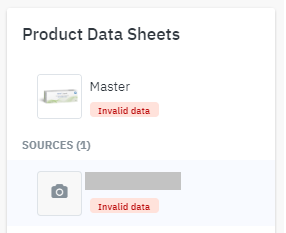
Outcome 2: Denied
Some required attributes are missing.
A partial product page is created.
You must update the missing information before adding an offer.
Outcome 3: Product page already exists
The imported data is incomplete but a valid product
page already exists.
Additional information might be added to an already existing product page.
Verification and synchronization time
Products get verified by the Empik Product Management Team. Full verification and synchronization may take up to 48 hours.
You can check the approval status in the Sellers Panel in Catalog > Catalog management.
Offer status during synchronization
If you add an offer before the product is approved it will appear in Sellers Panel under Price & stock > Offers > Offers in progress.
Once the product is synchronized, the offer automatically becomes active. If the product does not synchronize within 7 days, the offer will be removed and must be added again.
Statuses in Product Catalog
Most common issues when adding products
Every product page gets reviewed by the Empik team. Make sure you avoid these issues when adding new products:
- missing or invalid EAN code,
- incorrect category assignment,
- non-compliant product description (e.g., no Polish characters, too short, external links),
- poor-quality images, incorrect dimensions, watermarks, or graphics containing another platform’s logo,
- required attributes left unfilled.
Always verify imported products and offers in the Seller Panel.
Monitor product imports
Select the import and click View details > Report of unintegrated products.- Review the error list and correct your file.
- Re-upload the updated file.
More information on errors and monitoring can be found here.
Monitor offer imports
- Go to Price & stock > File imports > Monitor offer import.
- Download the error report (error-message column).
- Correct the affected rows based on the error messages.
- Save
the file and re-import it:
- upload
under Source,
- select file contents,
- choose import mode: standard,
- verify import results.
Do not check in the Offers
in progress tab - data may be outdated.
“The product does not exist”
This message appears when an offer is added using a SHOP_SKU that is not linked to any product in the database.
To resolve it:
- Log in to the Seller Panel.
- Go to Catalog > Catalog management.
- Select the products you want to update (or select all).
- Click Generate export file, then Download latest file.
- Open the file.
- In column B (SHOP_SKU), enter the correct product numbers. Do not modify any other columns.
- Save the file.
- Return to Catalog > Product imports and upload the updated file.
We hope this article was helpful. Your next step: managing your offers.